How to assign math fact practice in Google Classroom
More and more teachers post Num Drill in Google Classroom, and most of them post the plain app link. That works, but every student then has to find the right skill and level on their own, and some will pick the easiest one. A link that names the drill takes them straight into the quiz you chose, with no login. Here is how to set one up in about a minute.
Why link straight to a drill
- Everyone does the same practice. The link sets the skill, the level and the number of questions.
- No logins or rosters. Students open the link and the quiz starts. Nothing to provision, no passwords to reset.
- It works on Chromebooks. Num Drill runs in the browser, with a big on-screen keypad on touch screens.
Step by step: post a drill to Google Classroom
- Open the link maker on the teachers page.
- Pick the skill (for example multiplication), the level (level 2 is the 1–10 tables) and the number of questions. Ten is about a minute for most students. Choose 1 min (Mad Minute) for a one-minute timed round instead.
- Press Share to Google Classroom. Classroom opens in a new tab with the link and a short description already filled in.
- Choose the class, then post it as an assignment (if you want students to turn something in) or as material (for a link that stays on the Classwork page all term).
- Open the link yourself once before students do. If anything in it is wrong, the app says what and lets the student pick a drill instead.
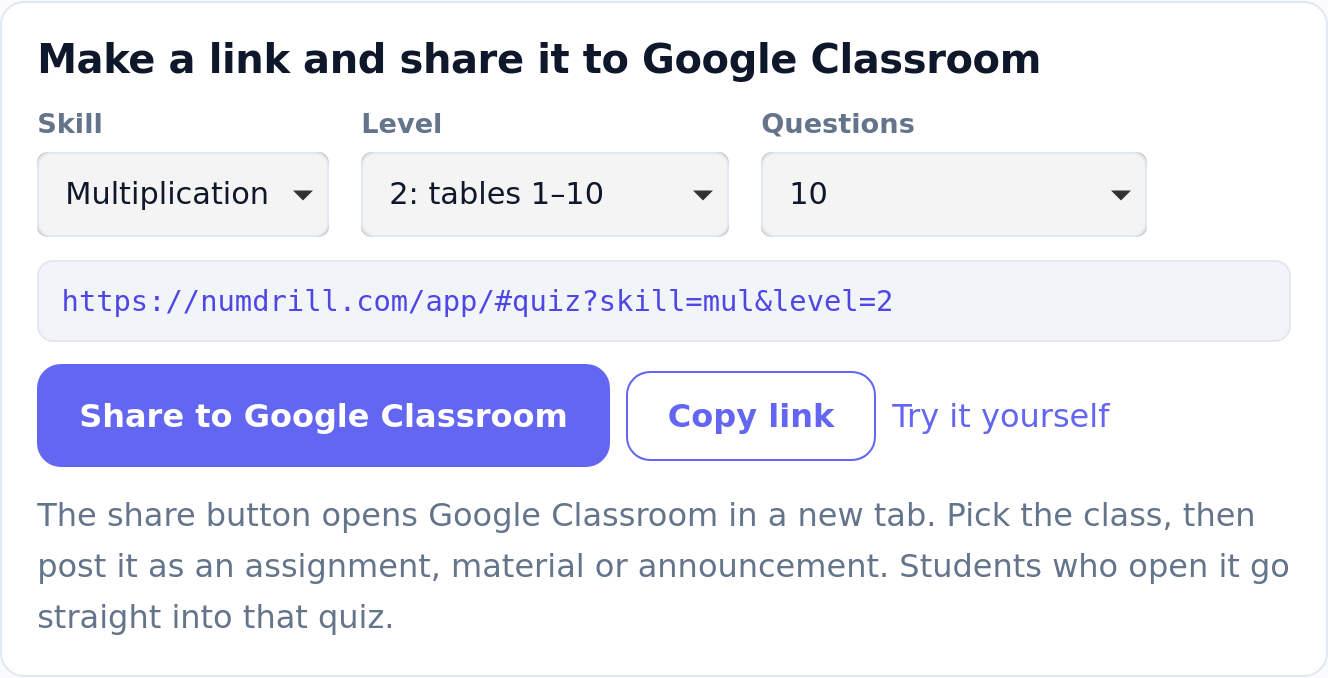
Prefer to type it? The link is just
numdrill.com/app/#quiz?skill=mul&level=2. Add
&count=20 for twenty questions, or
&timed=60 for a Mad Minute. The
teachers page lists every skill and level.
On shared Chromebooks
Each student has a profile (a name and an emoji) stored in that browser. On a 1:1 device they make it once. On a shared cart, ask students to tap their own name in the profile pill at the top before they open the assignment, or their score lands on a classmate’s record. A new student can add a profile in a few seconds with the Add player button.
Seeing how students did
Num Drill has no teacher accounts, by design: there is no student data to sign in to. When students finish, the results screen shows their score, their time and every question they missed. Two easy ways to collect that:
- Ask students to show you the results screen as they finish, which works well for a warm-up.
- For an assignment, ask them to attach a screenshot of the results screen when they turn it in.
Since October, the quiz won’t accept a blank answer, so students can’t tap through to the end. A finished quiz means every question got a real attempt.
A simple weekly routine
- Monday to Thursday: one 10-question drill at the class’s level, as a warm-up or an exit task. See how to run a 10-minute warm-up.
- Friday: a Mad Minute on the same skill. Students compare with their own last score, not each other’s.
- Moving up: when most of the class is scoring 90% or more with quick times, post the next level.
For days without devices, the free multiplication, addition, subtraction and division worksheets cover the same facts, each with an answer key.
Make your first assignment link
Pick a skill and level, then share it to Classroom in two clicks.
Open the link makerCommon questions
Can I assign Num Drill in Google Classroom?
Yes. Use the link maker on the Num Drill teachers page to choose a skill, level and number of questions, then press Share to Google Classroom and post it to your class as an assignment or material. Students go straight into that quiz.
Do students need to log in?
No. There are no student accounts. Each student has a local profile, a name and an emoji, stored in the browser on their device.
Can teachers see student scores?
There are no teacher accounts, so scores are not collected for you. Students see their score, time and missed questions on the results screen; ask them to show it or attach a screenshot when they turn in the assignment.
Can I set a timed quiz?
Yes. Choose 1 min (Mad Minute) in the link maker, or add &timed=60 to an assignment link, for a one-minute round where students answer as many as they can.